
How to Set Up Your Canaan Avalon Q Miner Using Only a Mobile Phone

How to Set Up Your Canaan Avalon Q Miner Using Only a Mobile Phone


Summary

Mobile-Friendly Setup Guide for Canaan Avalon Q Series Miners

Setting up your Canaan Avalon Q miner doesn’t require a laptop or desktop computer. With just a mobile phone, you can complete the entire installation—from IP address scanning, network setup, miner configuration, pool settings, and performance checking.

1. Unbox Your Canaan Avalon Q Miner

Your Canaan Avalon Q comes with the miner unit, integrated PSU (varies by model), Ethernet port, and cooling system. Before setting it up with your mobile phone, ensure all accessories are ready.
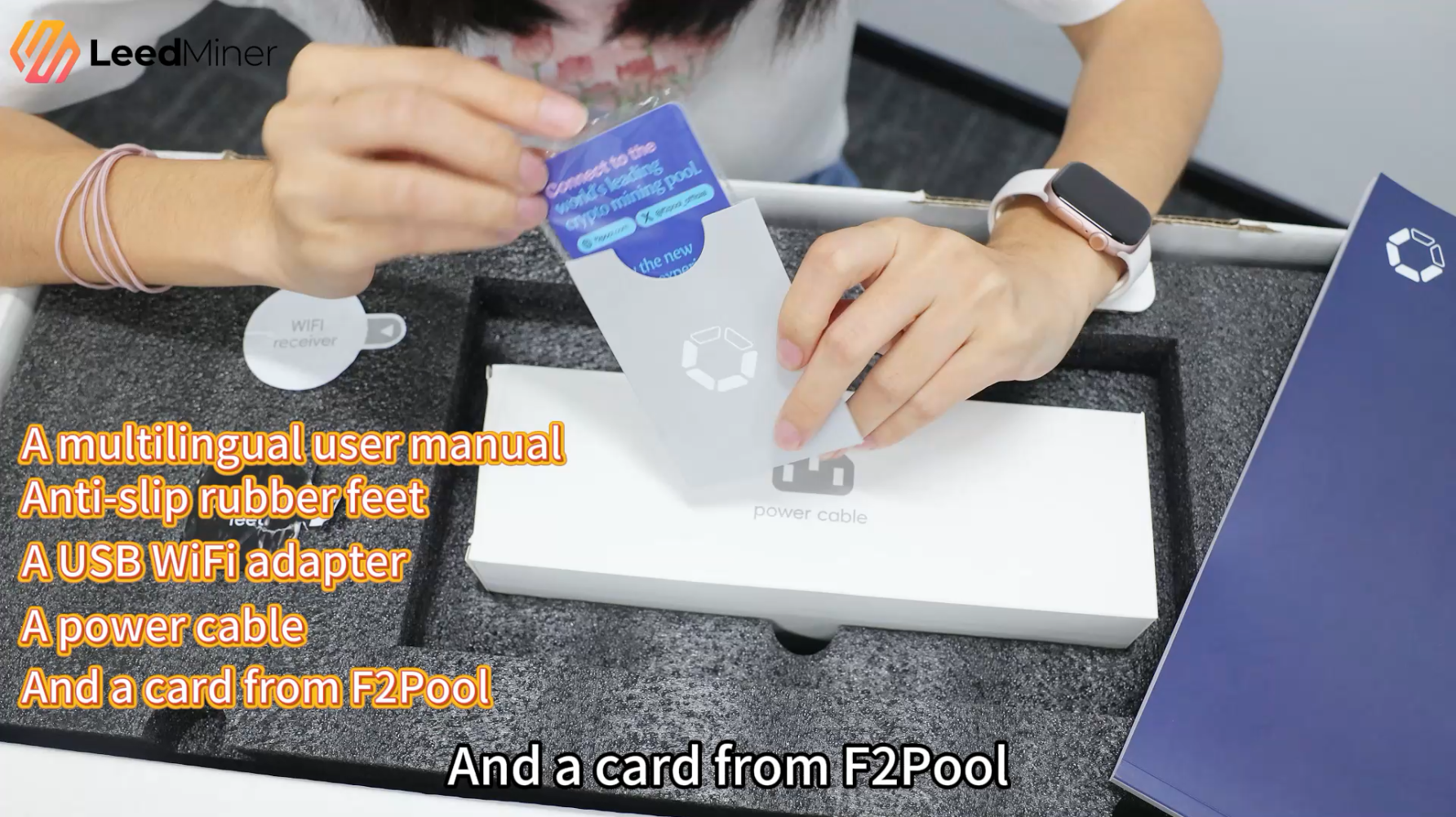
What's inside the box

2. Connect Power & Ethernet Cable

Quick Instructions

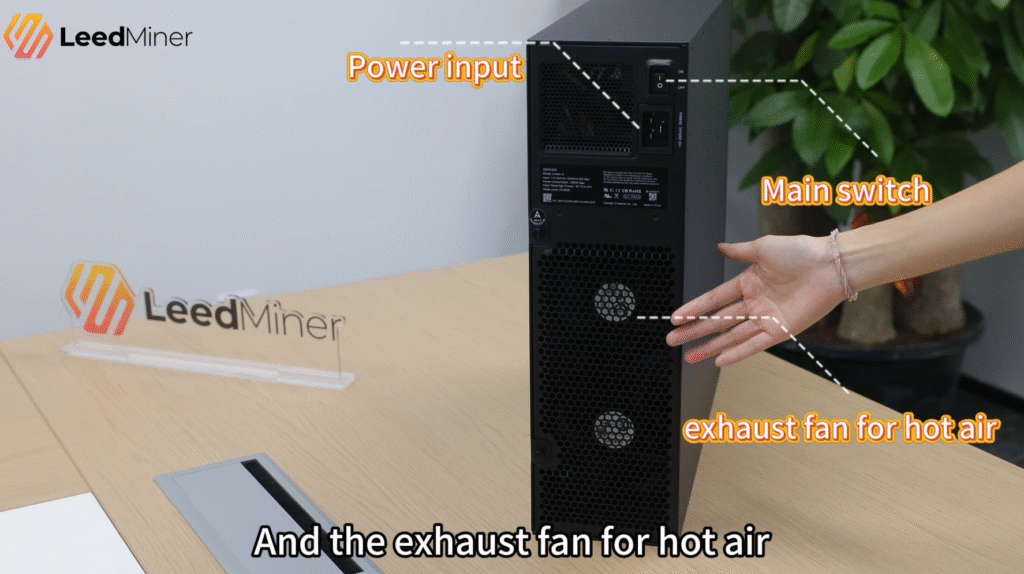
Plug the Avalon Q miner into power.

Connect the Ethernet cable from your miner to your router.

Wait 1–2 minutes for the miner to boot.

Tip: Avalon Q models boot silently at first, then the fan ramps briefly—this is normal.
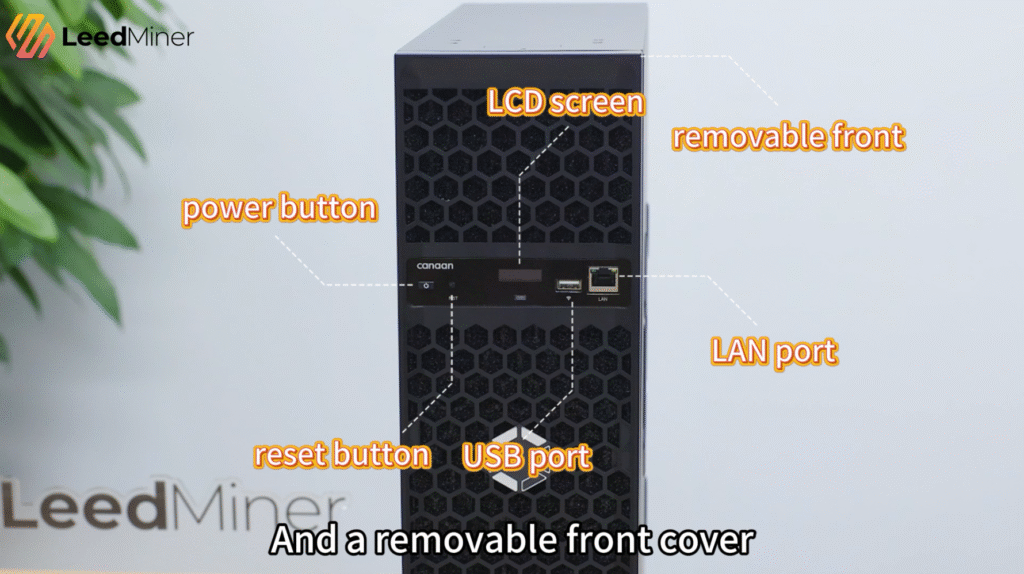
Canaan Avalon Q Interface
Canaan Avalon Q Interface2

3. Connect Canaan Avalon Q using the Avalon Family APP

3.1 Download the Avalon Family app from the App Store (iOS) or Google Play (Android).

3.2 Open the application and select "Add New Device".
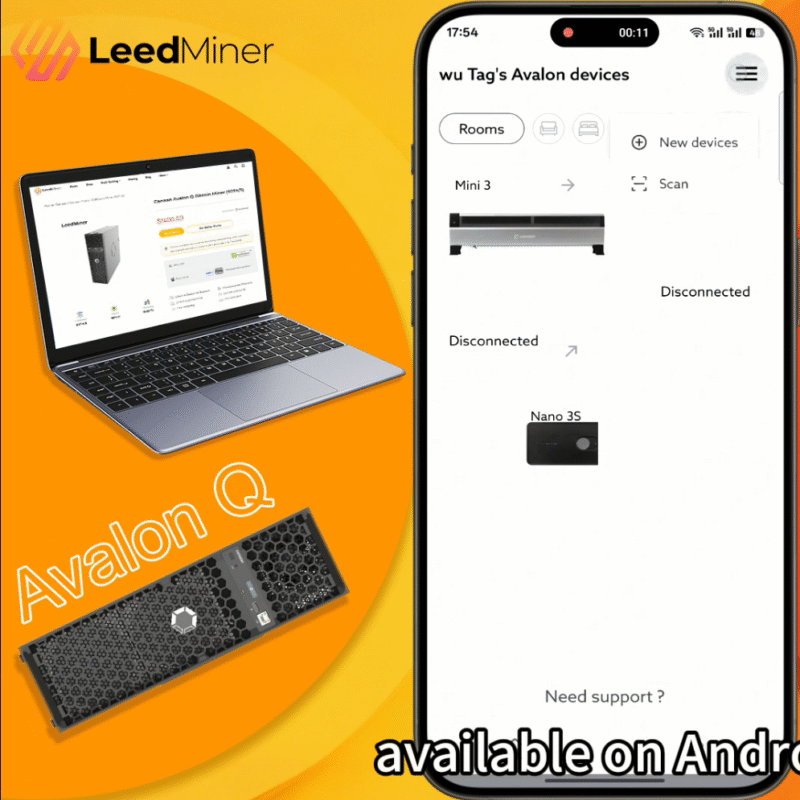
Add New Devices

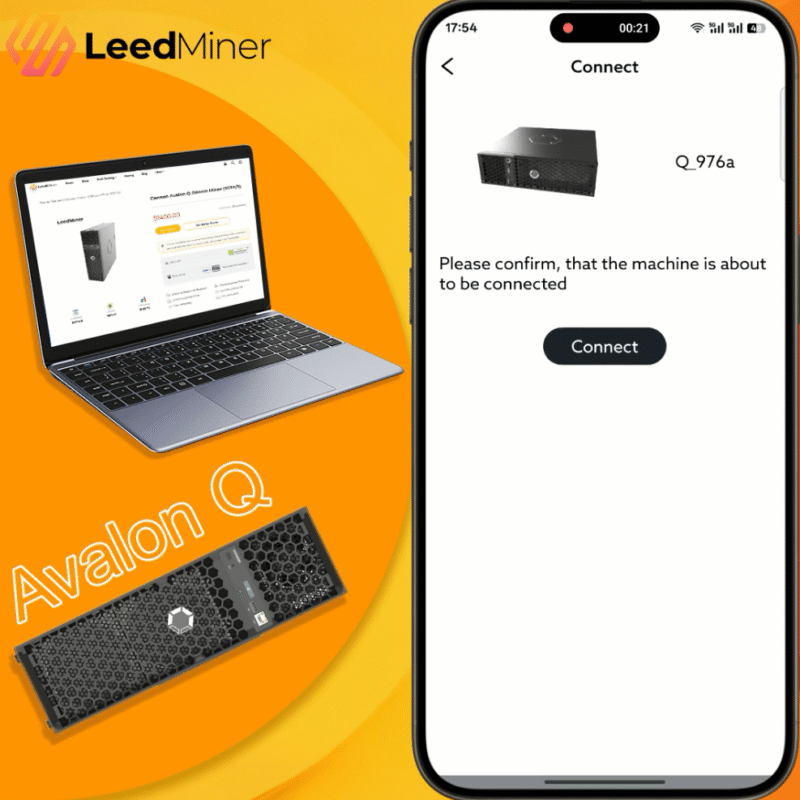
3.3 Click the link when Canaan Avalon Q appears.
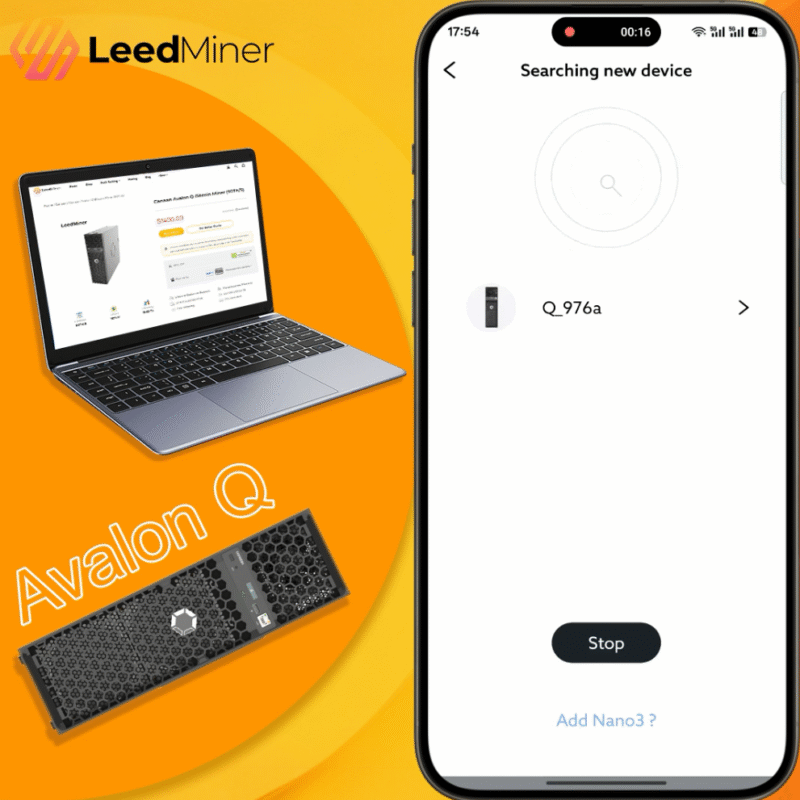
It will display Canaan Avalon Q
Click the Connect

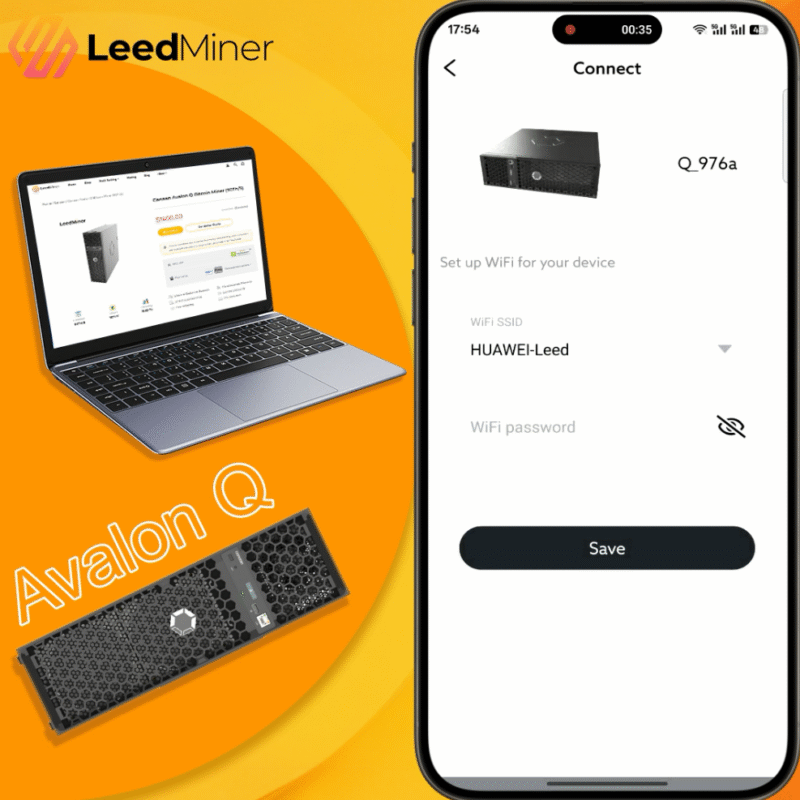
3.4 Connect it to your Home WIFI

Connect it to your WIFI

3.5 After logging in with the default password, you will be prompted to create a new, more secure password.

You will be asked to change the default password

4. Configure Your Mining Pool on Mobile

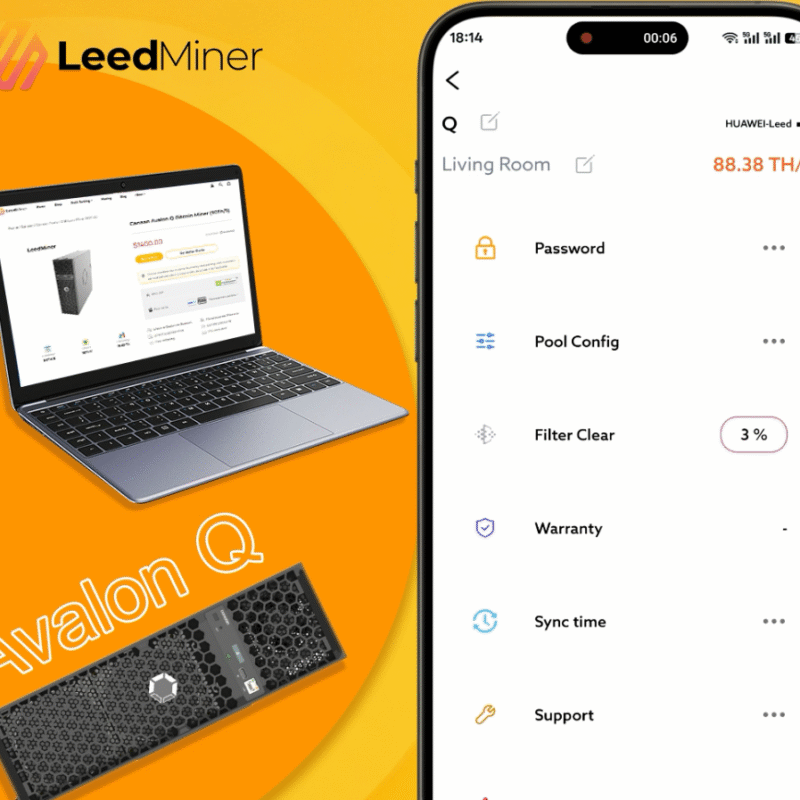
4.1 Go to settings and click pool config.

You’ll need three pool URLS.
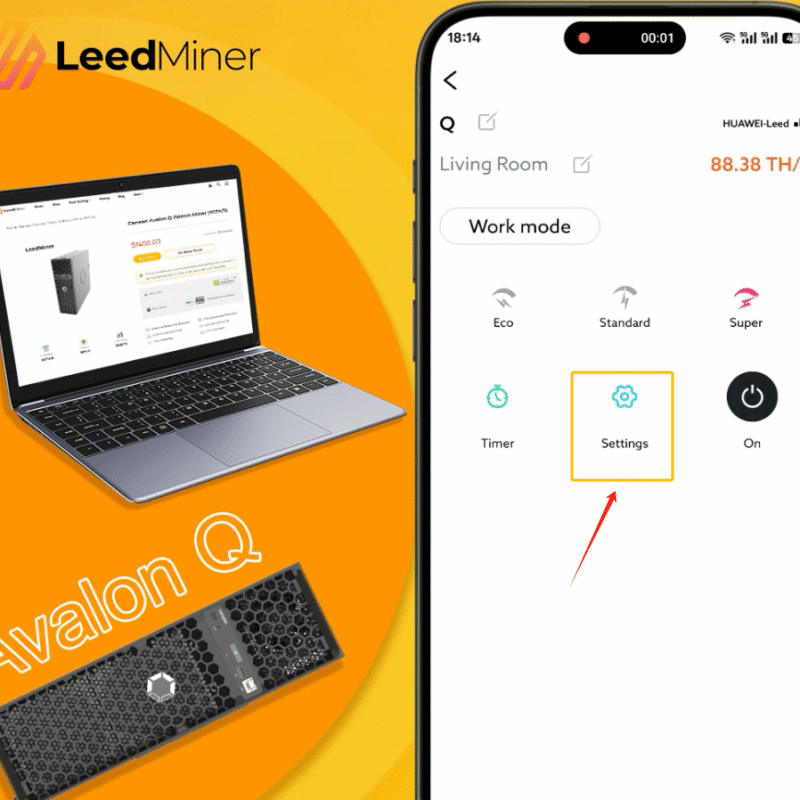
Go to settings
Click on Mining Pool Config

4.2 Please fill in your mining information


  • Pool Address 1
  • Worker 1
  • Password 1

Pool 2 and Pool 3 are available for use.
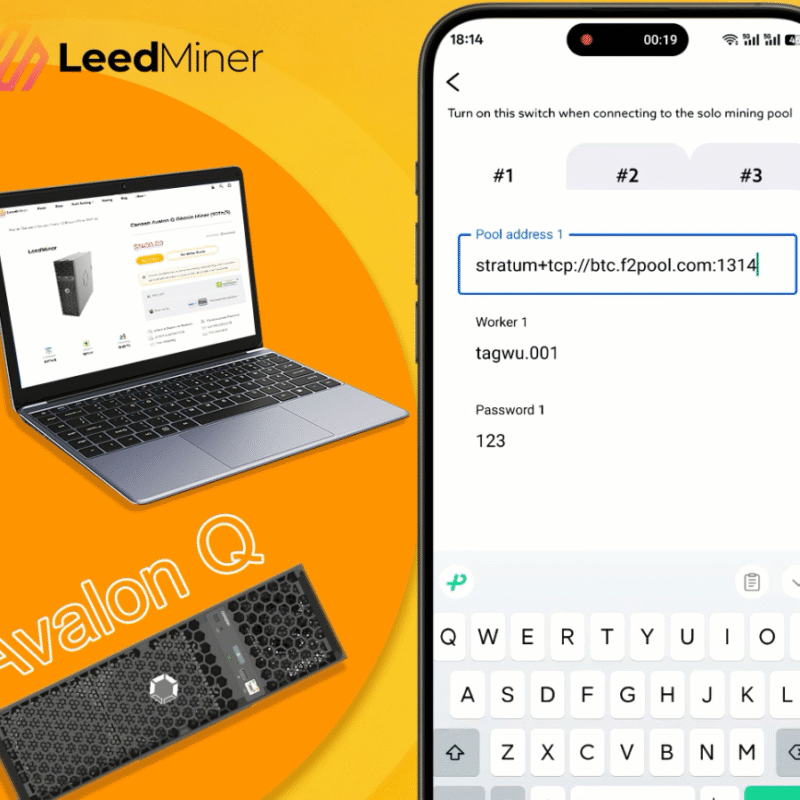
 
Please fill in your mining information

5. Start mining

Three working modes are available
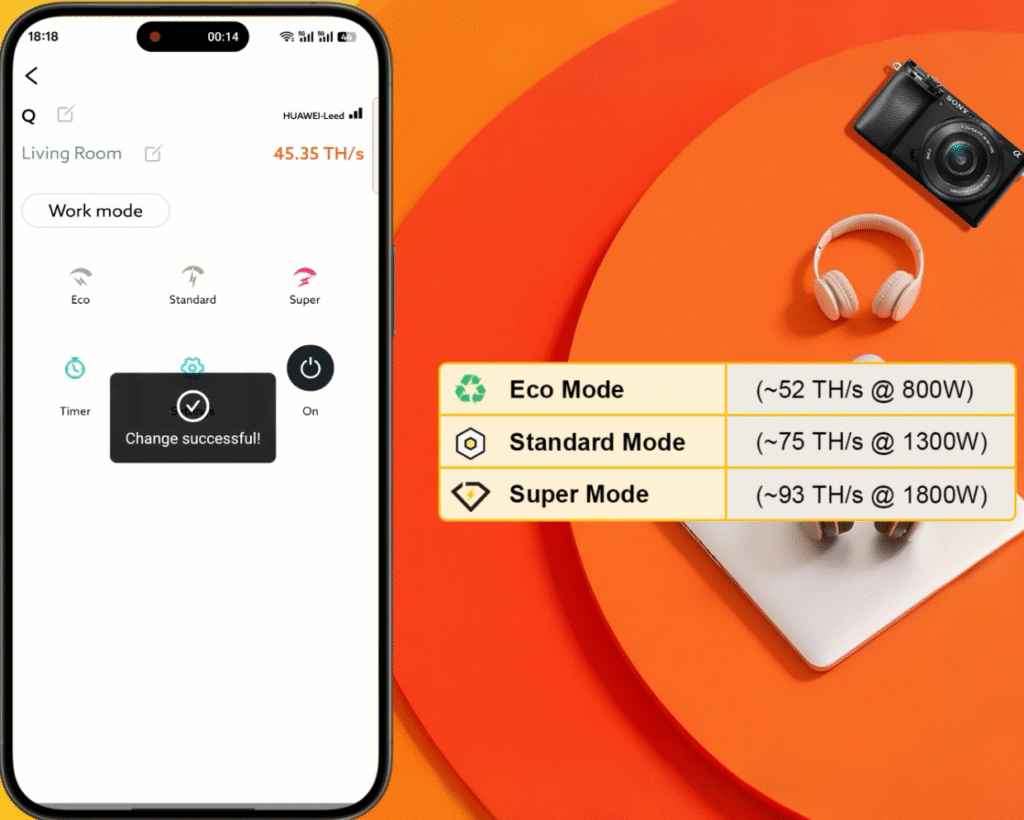
Three working modes are available

Noise comparison under three conditions
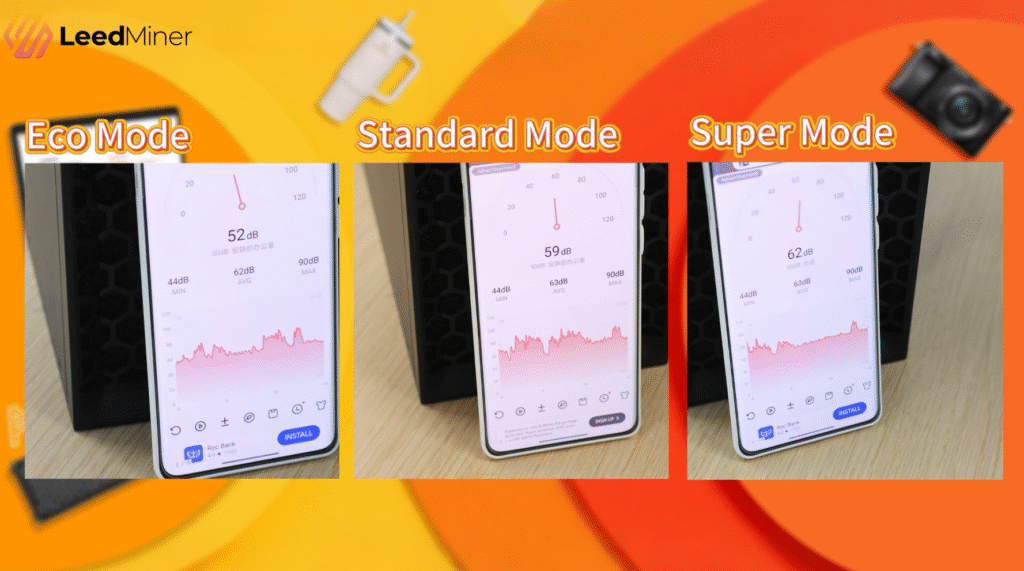
Noise comparison under three conditions

Frequently Asked Questions About Setting Up the Canaan Avalon Q

Q1. Can the Avalon Q run on a normal household wall outlet?

Yes. A standard 15A outlet can support the Avalon Q in Eco Mode or Standard Mode. If you want to run Super Mode, you will need a 20A circuit for safe and stable operation.

Q2. Is the Canaan Avalon Q loud?

No. The Avalon Q is quieter than most traditional ASIC miners. Its optimized fan system keeps noise low, making it suitable for living rooms, offices, and home environments.

Q4. How do I connect the Avalon Q to my Wi-Fi?

Through the Avalon Family App, go to Network Settings, select your Wi-Fi SSID, enter your password, and save. The miner will restart and connect to your wireless network automatically.

Q5. Does the Avalon Q work without an Ethernet cable?

Yes. The Avalon Q can run Wi-Fi only, so you don’t need Ethernet unless you prefer a wired connection.

Q6. Can I monitor hashrate and temperature from my phone?

Yes. The Avalon Family App shows real-time hashrate, board temperatures, fan speed, accepted shares, and error logs directly on your phone.
Please feel free to contact us if you have any questions.

Leave a Comment